
Step-by-Step Instructions
1. Locate the calendar invite
Open your calendar and find the event for your scheduled RevImpact call.

2. Open the event details
Click into the event to view the meeting summary and invitation details.
3. Select the reschedule link
In the invitation, you’ll see two links:
- Cancel
- Reschedule
Click the link labeled Reschedule.
4. Choose a new time
You’ll be taken to your consultant’s calendar, where you can view available times that align with both your schedule and theirs.
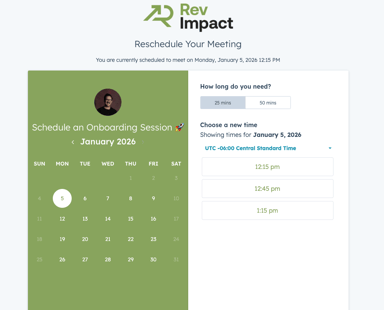
5. Confirm the new meeting time
Select a new time and click Confirm. Your meeting will automatically update in your calendar.
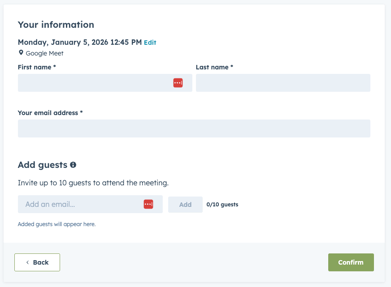
What Happens Next
- The meeting will be moved to the newly selected time
- All existing invitees will remain included
- No additional action is required on your end
Important Note on Calendar Views
Note: The calendar screenshots and examples shown in this article use Google Calendar. If you’re using a different calendar provider (such as Outlook, Apple Calendar, or another scheduling tool), the layout and appearance may vary slightly, but the steps and functionality remain the same.
If you have any issues rescheduling or need additional assistance, feel free to reach out to your RevImpact consultant for support.